Grid overlay
Toggle a non-printing dotted grid over the canvas to help align objects precisely. The grid is editor-only and never appears in exports, downloads, or final cards.
The grid overlay draws a regular dot pattern across the canvas. It is a visual reference only — it never appears in exported images, downloaded files, printed cards, shared links, or generated videos.
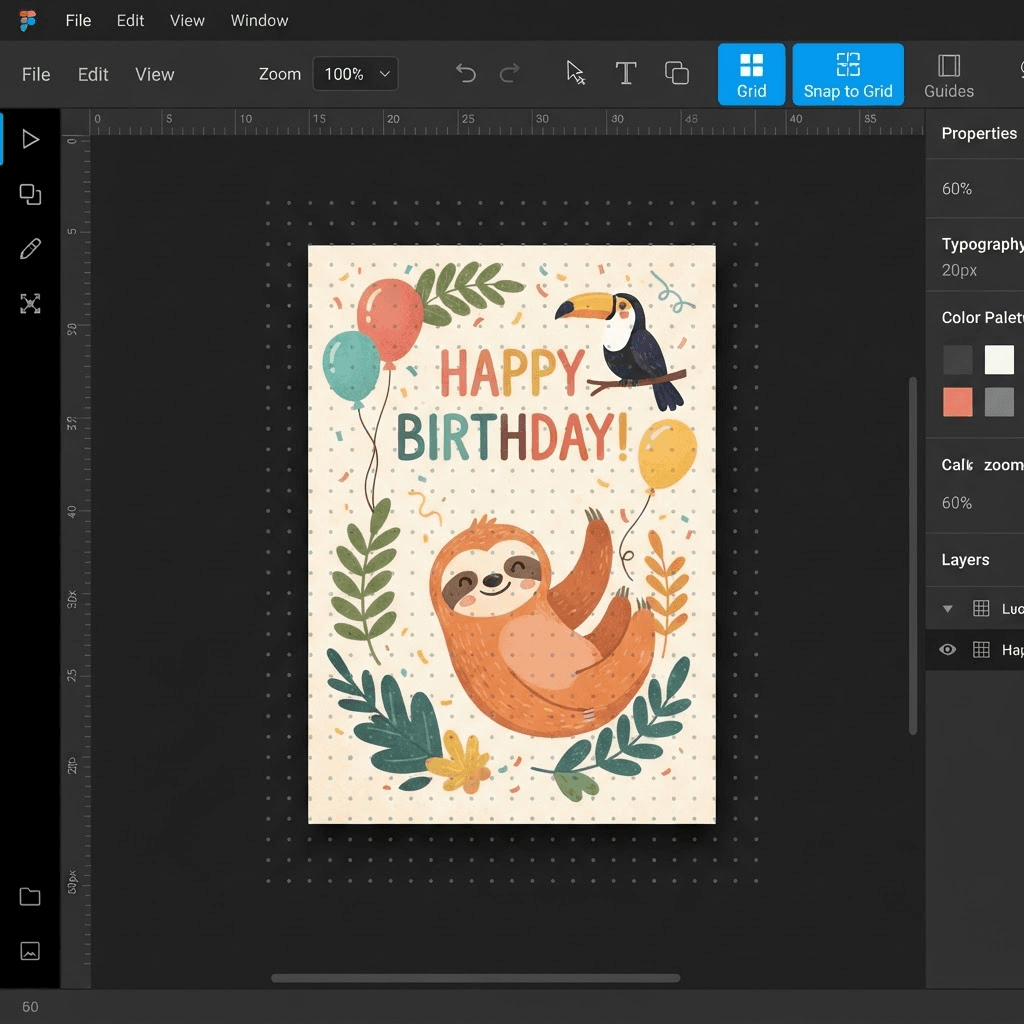
Turning the grid on and off
- 1
Open any design in the editor
Create a new design or open an existing one from your library.
- 2
Find the Grid button in the top toolbar
It sits between the Undo button and Save. It shows a grid icon and is labelled Grid.
- 3
Click Grid to toggle the overlay on
The button highlights (secondary style) and a dot grid appears over the canvas. The grid spacing is 20 px at 100% zoom.
- 4
Click Grid again to hide it
The overlay disappears. Your design is unchanged — the grid is purely cosmetic.
Quick alignment check
Turn the grid on, move or resize objects until they sit on a dot row, then toggle it off. There is no separate snap-to-grid — use the grid as an eye guide.
What the grid does not do
- The grid does not snap objects — move objects freely and use the dots as a visual reference.
- The grid does not print. It is stripped before any export, download, share, or video render.
- The grid is not saved. If you close and reopen a design, the grid starts off by default.
- The grid does not affect AI generation. Toggling it on or off has no effect on generated artwork.
Note
The grid state is intentionally session-only. This keeps shared links and embeds clean without needing an extra setting.