Layout Planner (AI Rearrange)
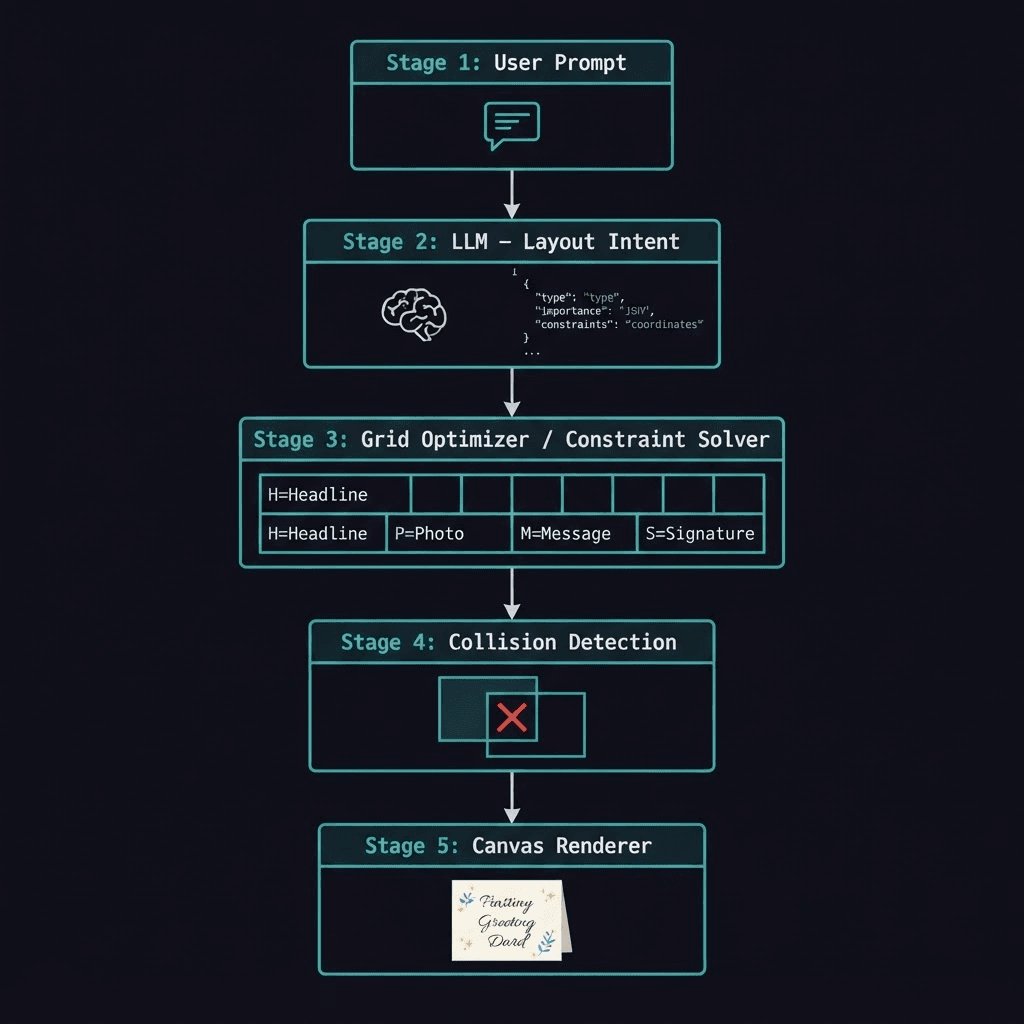
MomentA's Layout Planner lets you describe a change in plain English. An LLM produces semantic constraints — a deterministic grid solver calculates exact positions. No pixel coordinates come from the AI.
The Layout Planner is an AI art director built into the editor. Type a plain-English instruction — "make the flowers more prominent", "move the headline above the photo", "use a two-column split" — and the planner updates the design. The key difference from a normal AI assistant: the LLM never places pixels. It outputs semantic intent; a deterministic constraint solver computes exact positions.
How to use it
- 1
Open any design in the editor
Create a new design or open an existing one from your library.
- 2
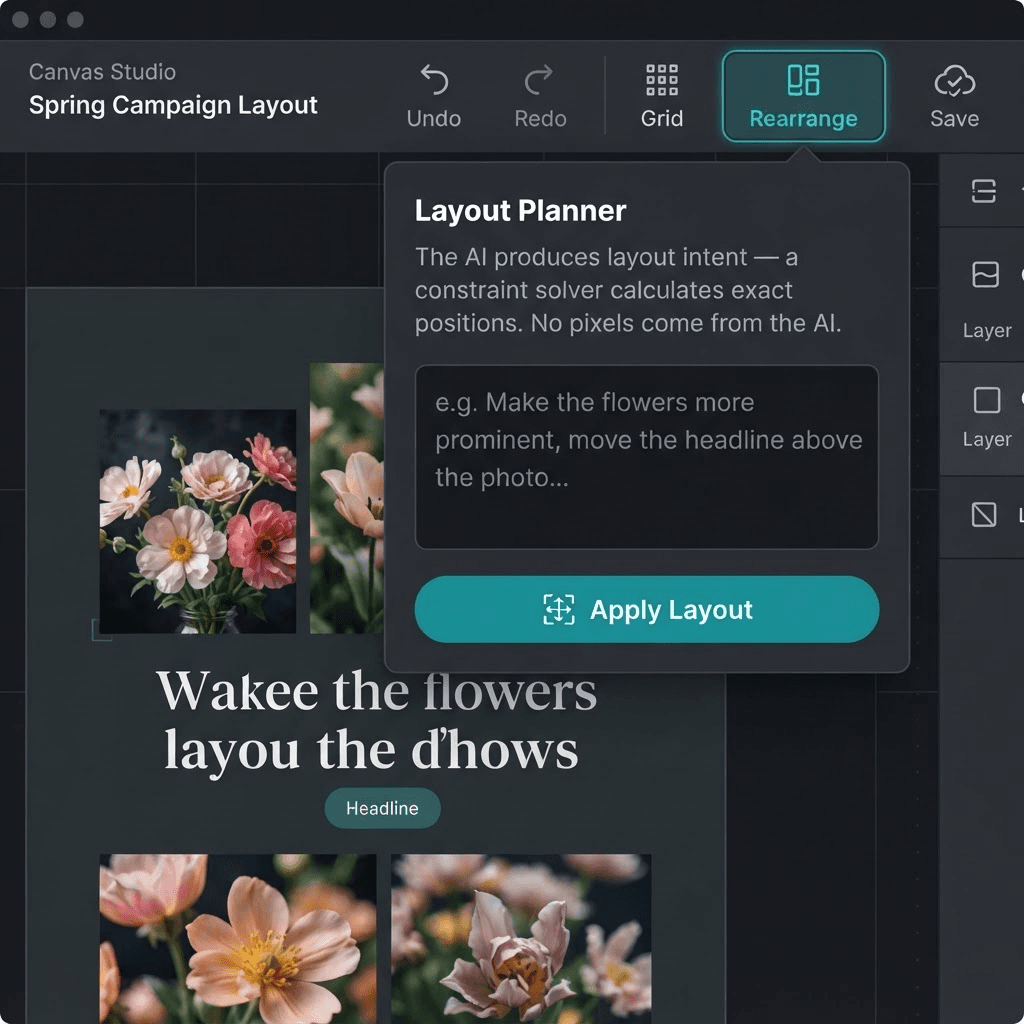
Click the Rearrange button in the top toolbar
It sits between the Grid button and Save. The Layout Planner popover opens.
- 3
Type your layout instruction
Describe the change you want in plain English. Examples: "make the flowers more prominent", "centre the headline and enlarge it", "use a two-column split with the photo on the left". Press Enter or click Apply Layout.
- 4
Review the result
The solver re-calculates all positions and rebuilds the canvas. If the result isn't right, type a follow-up instruction or use Undo.
What the LLM produces
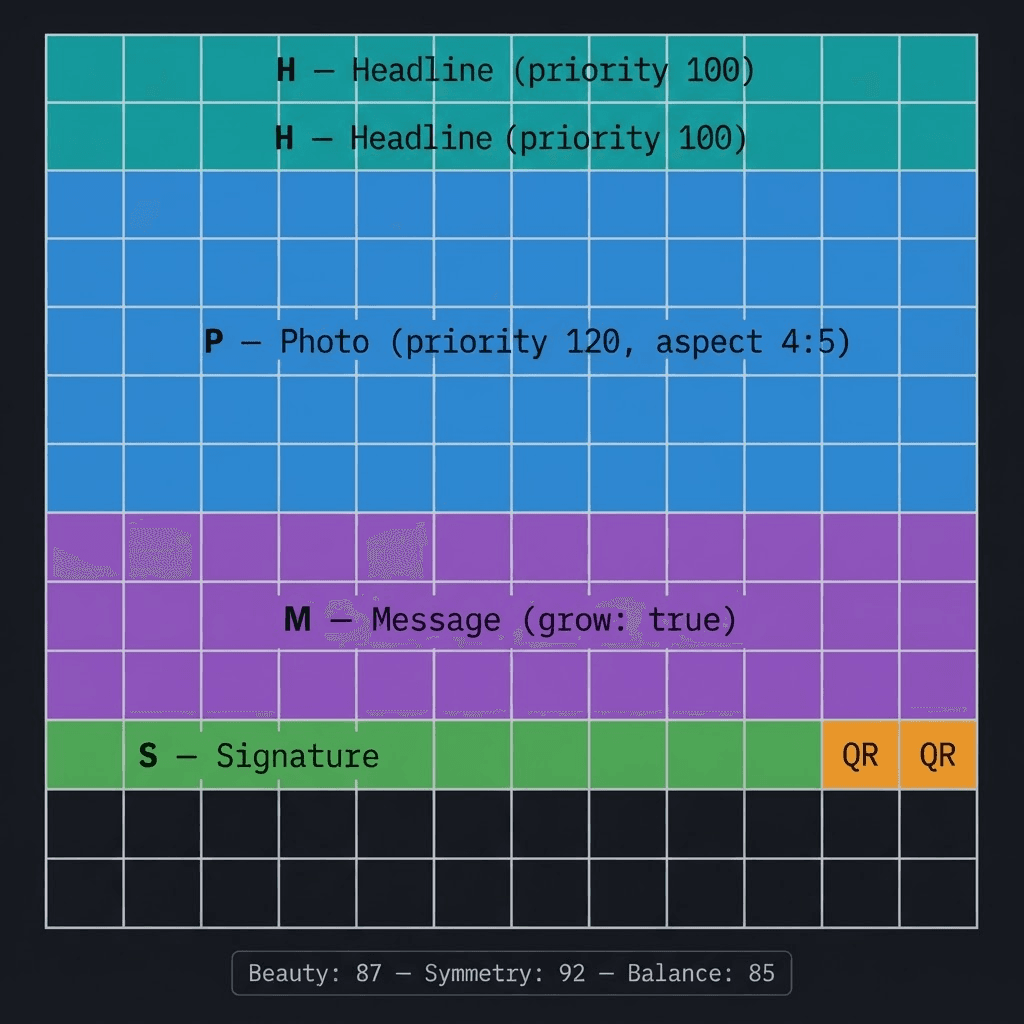
The LLM is given a strict system prompt that forbids pixel coordinates, canvas fractions, and any absolute sizing. It is only allowed to produce a LayoutRecipe — a list of semantic elements (headline, photo, body, accent, …) each with importance, size constraints (min/preferred/max column spans), and a set of named layout rules (e.g. headline_above_photo, golden_ratio_preferred).
Semantic elements
Each element has a type (headline, photo, body, accent, …), an importance level (low → highest), and optional size constraints in grid units. No coordinates.
Layout rules
Named constraints such as headline_above_photo, photo_centered, maintain_visual_balance, golden_ratio_preferred. The solver enforces them in priority order.
Orientation hint
The LLM picks portrait, landscape, or square based on the instruction and current canvas. The solver uses this to set the grid aspect ratio.
The grid optimizer
The solver places elements on a 12-column × N-row grid. It works in five passes: (1) sort by importance, (2) assign preferred sizes within min/max constraints, (3) apply layout rules, (4) detect and resolve collisions by shifting then shrinking, (5) score the result for symmetry, whitespace, balance, and golden ratio proximity. The highest-scoring collision-free placement wins.
Before and after example
Constraints the solver respects
| Constraint | What it enforces |
|---|---|
| No overlap | No two elements share the same grid cell. |
| Safe margins | 10% margin on all sides (1 col left/right, 5% top/bottom). |
| Minimum font size | Text zones are never shorter than 1 row. |
| Photo visibility | Photo/hero zones always meet their minHeight. |
| Text readability | Body and headline zones always meet their minWidth. |
| Golden ratio preferred | Solver prefers layouts where the major dividing line is at 61.8% of the canvas height. |
| Priority ordering | Higher-importance elements get their preferredHeight before lower-importance ones can grow. |
Multi-language designs
German, Tamil, and other languages expand text significantly. Because the layout engine re-flows from constraints rather than fixed coordinates, long translations automatically claim more rows and push decorative elements outward — no separate template needed.
Rearrange vs. Regenerate
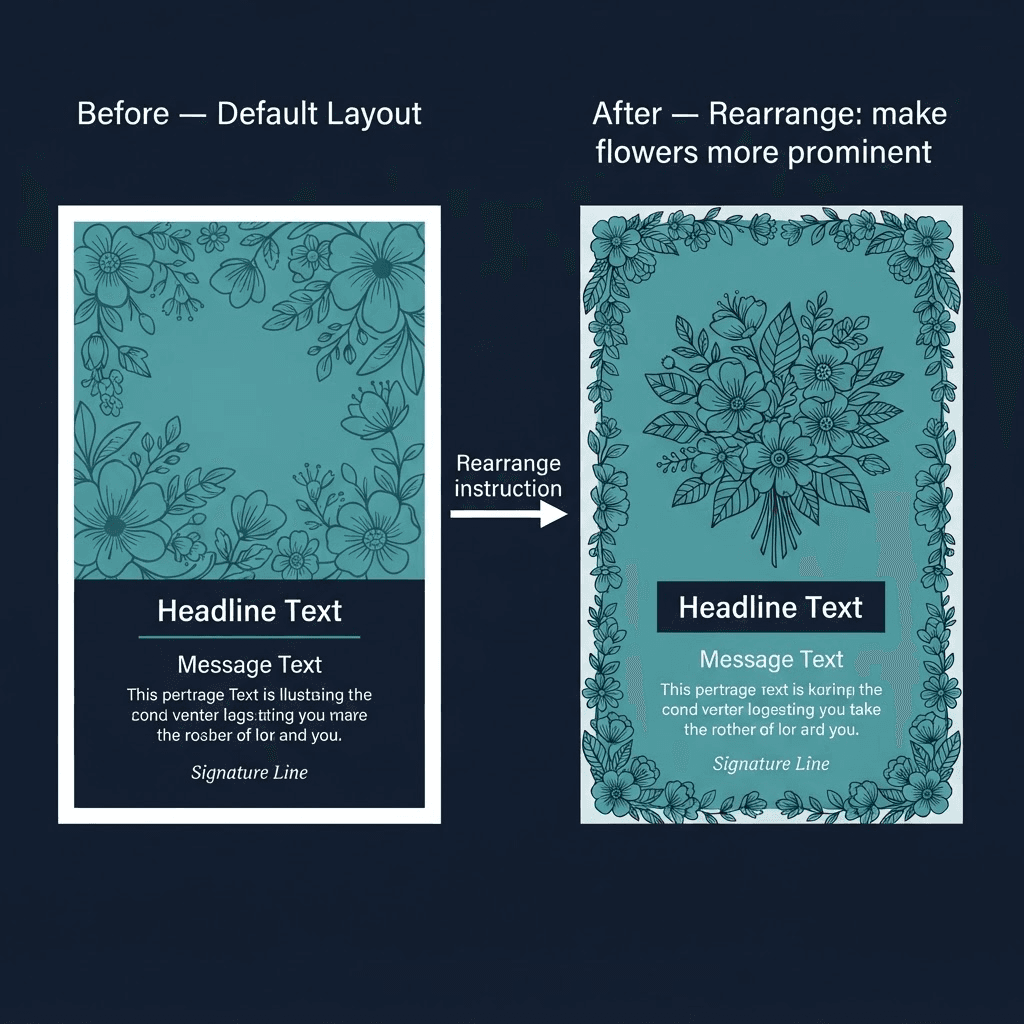
Rearrange moves existing layers — it does not regenerate the AI artwork or change the card's written content. To regenerate the image, use the Polish or Regenerate actions. To change the text, edit directly in the editor.